

Product guide
brane x guide
Step by step
Quick start
From the box to your first song in six steps.
Plug it in
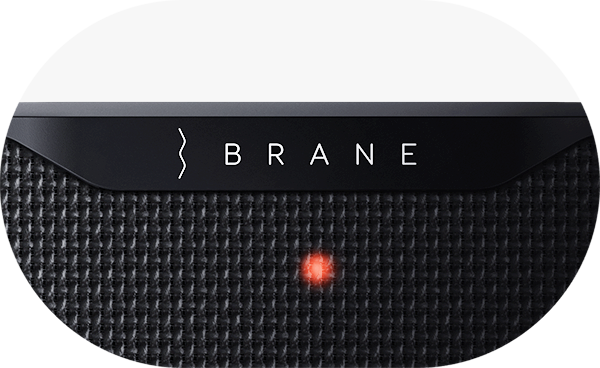
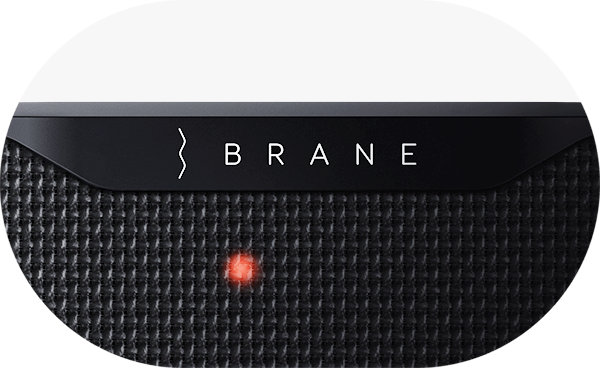
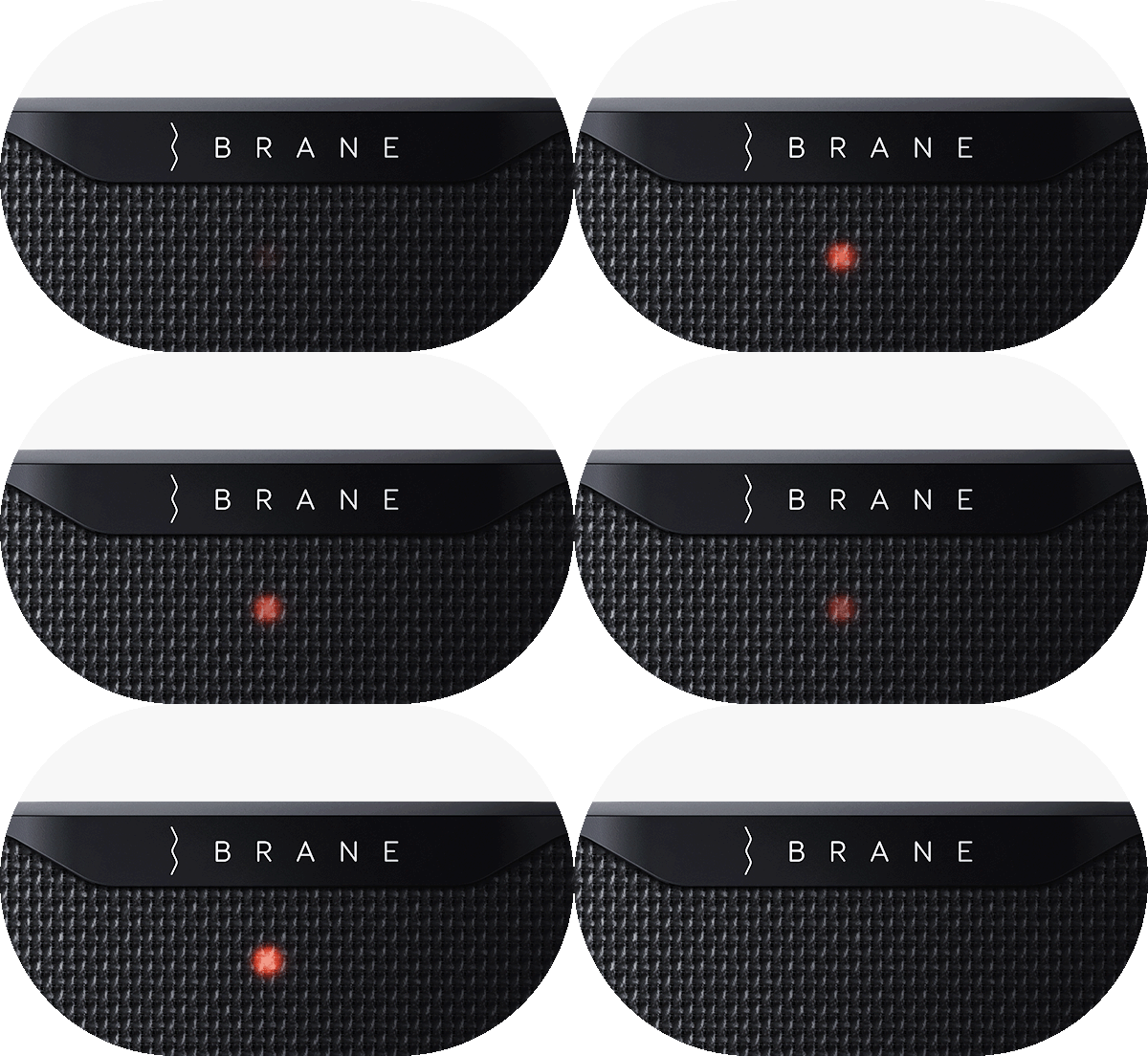
Unpack Brane X and its charger, then plug the speaker in. It arrives with some charge, but setting up on wall power means it cannot run out partway through. An orange light on the front shows the battery is charging.
Power on
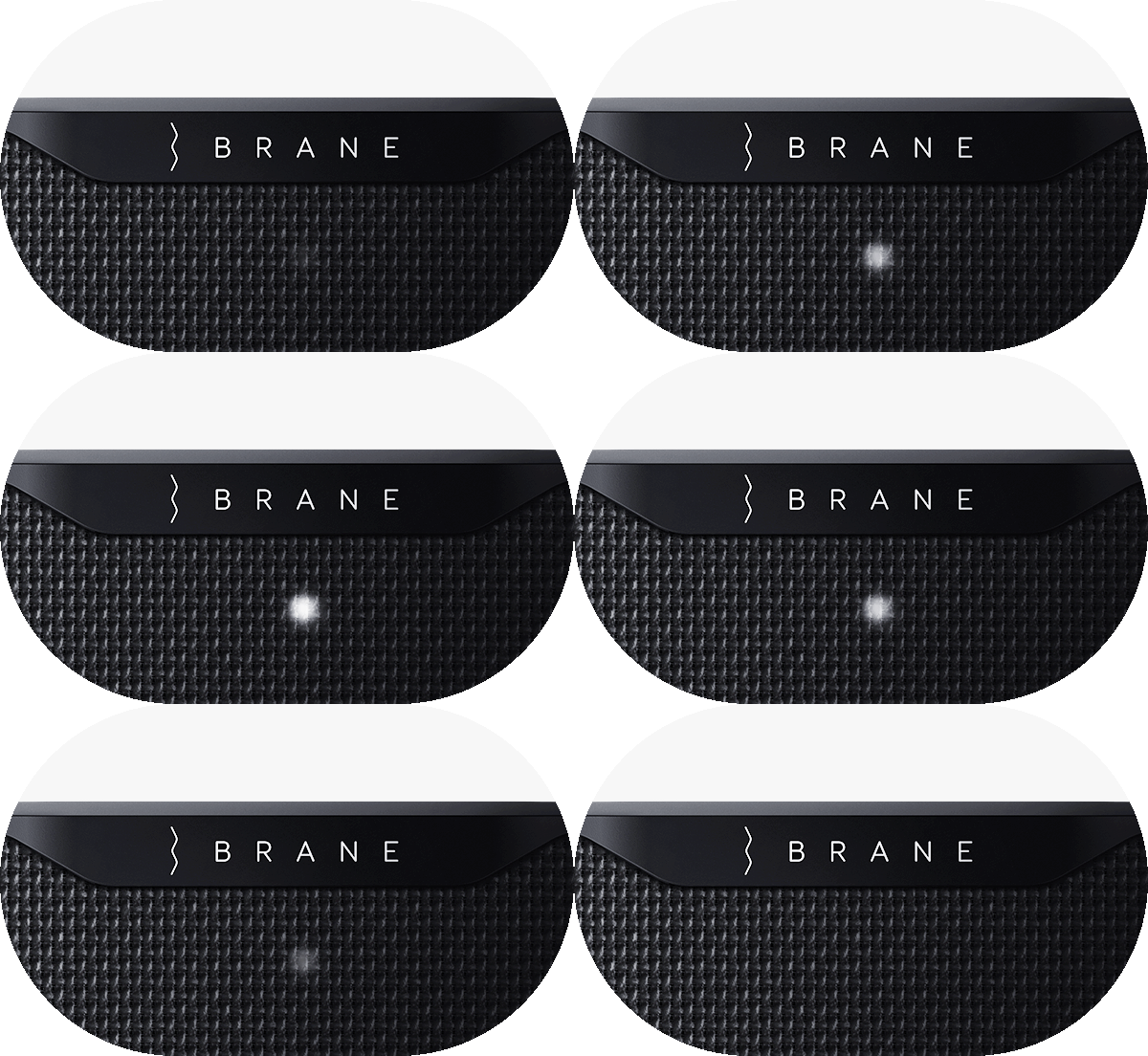
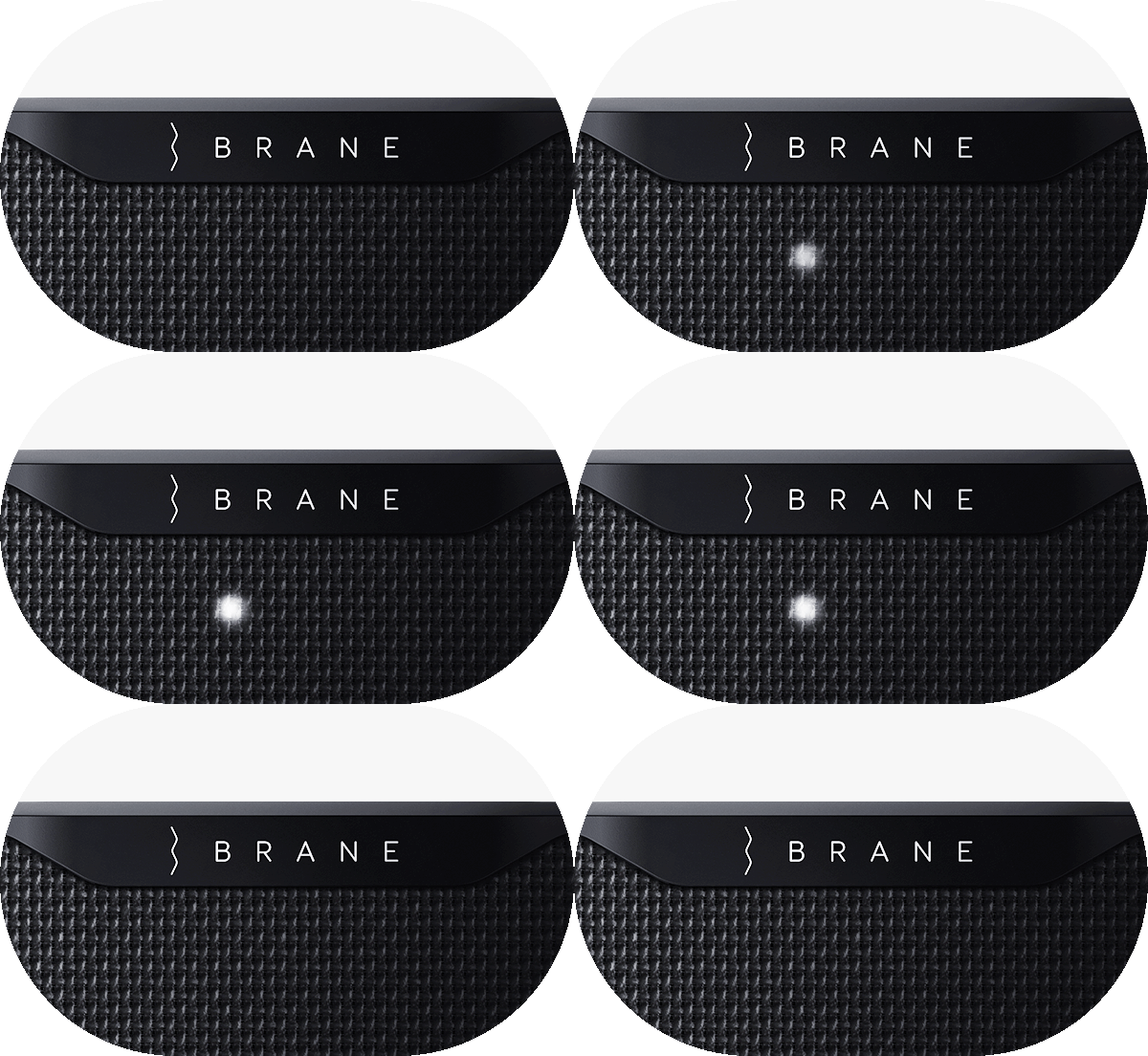
Press the power button on the back. White lights show on the front while the speaker starts, and you will hear a short launch sound. That sound is normal: it is the Repel-Attract Driver getting ready to play.
Pair over Bluetooth
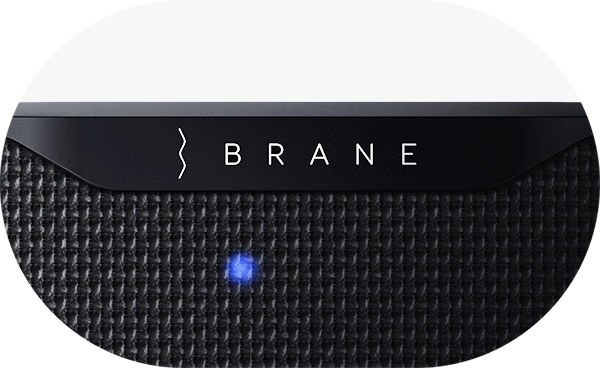
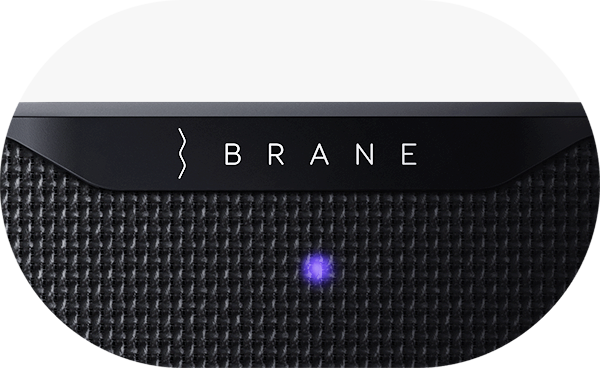
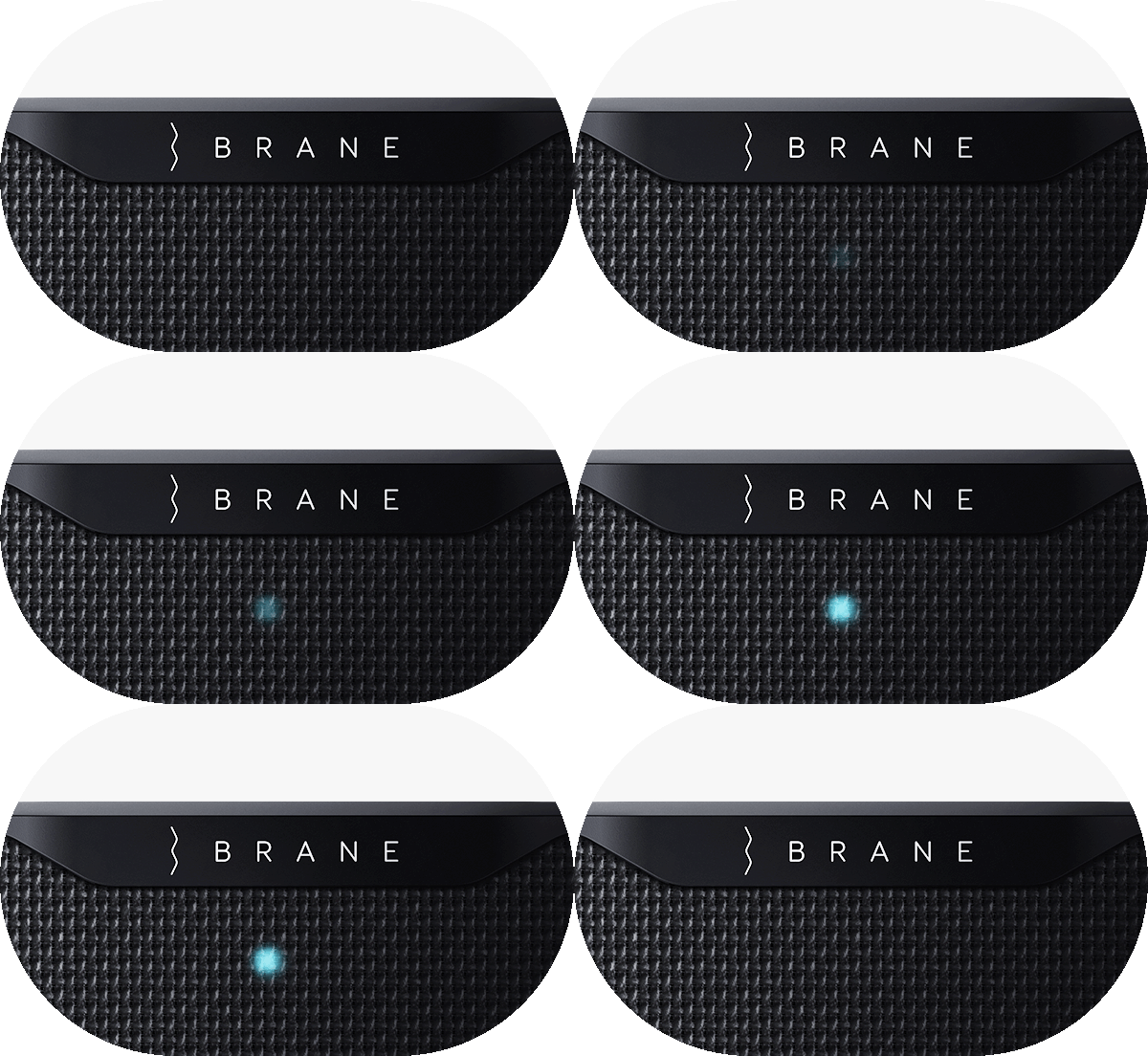
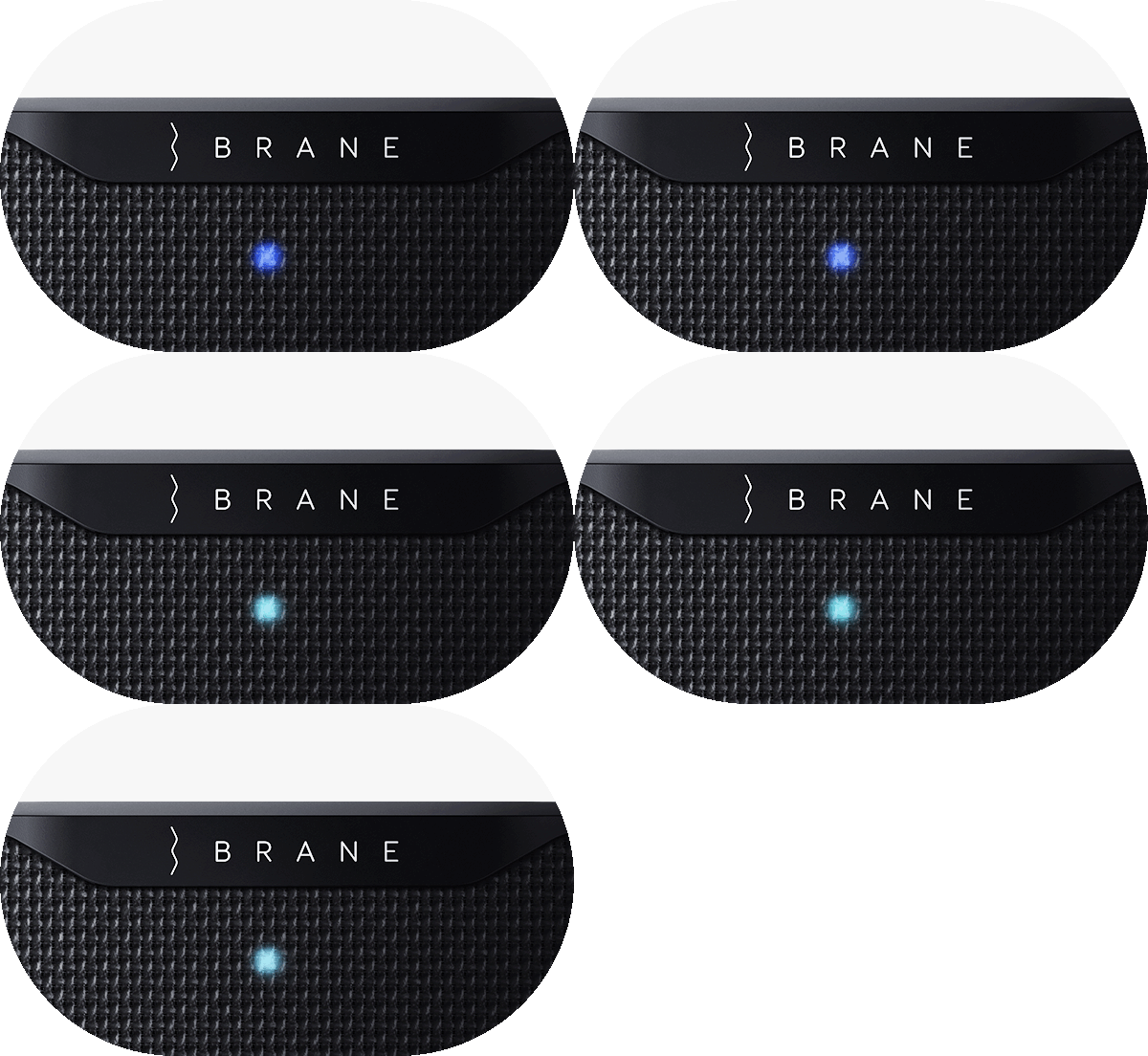
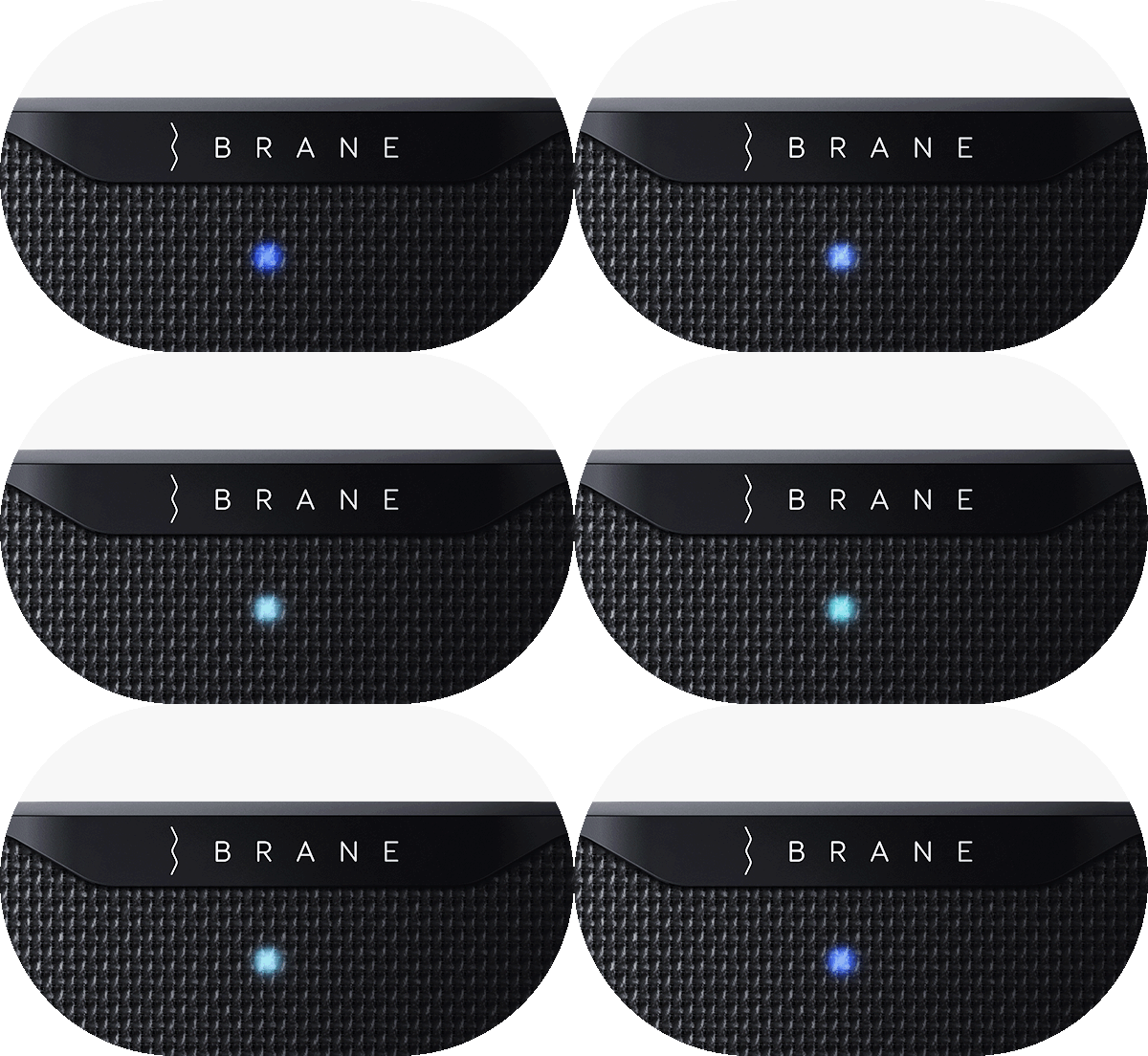
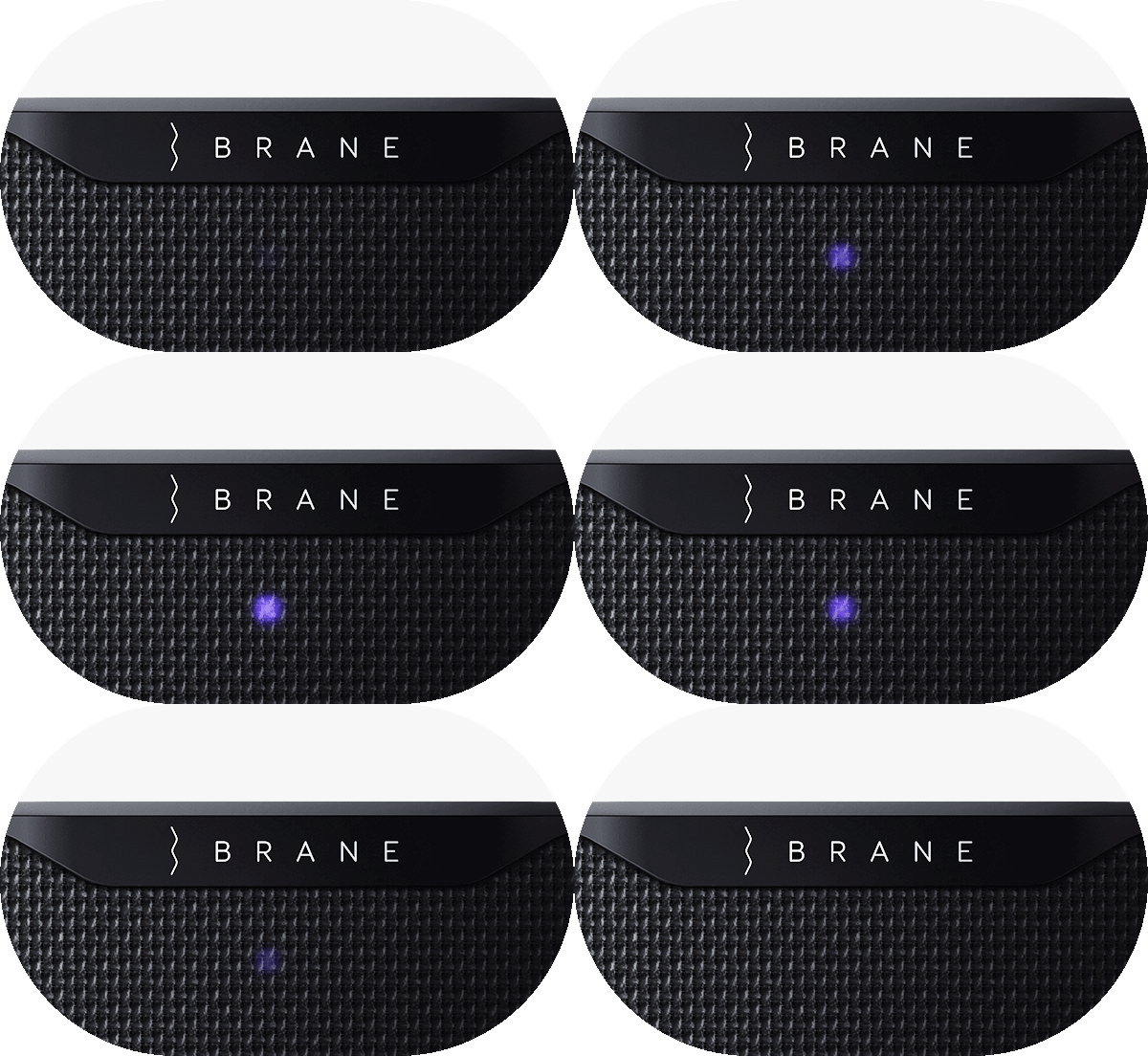
Press the Bluetooth button on the Control Bar. The blue light pulses and the speaker says "Bluetooth pairing mode". Choose the speaker in your phone's Bluetooth settings, where it is listed as "Brane-" followed by its serial number. A solid blue light means it is connected, and you can already play music.
Get the app
Download the Brane Audio app from the Apple App Store or Google Play Store and create your account. With your phone connected over Bluetooth, the app finds the speaker and you can change its settings. You need the app for setup and settings, not for everyday listening.
Add Wi-Fi
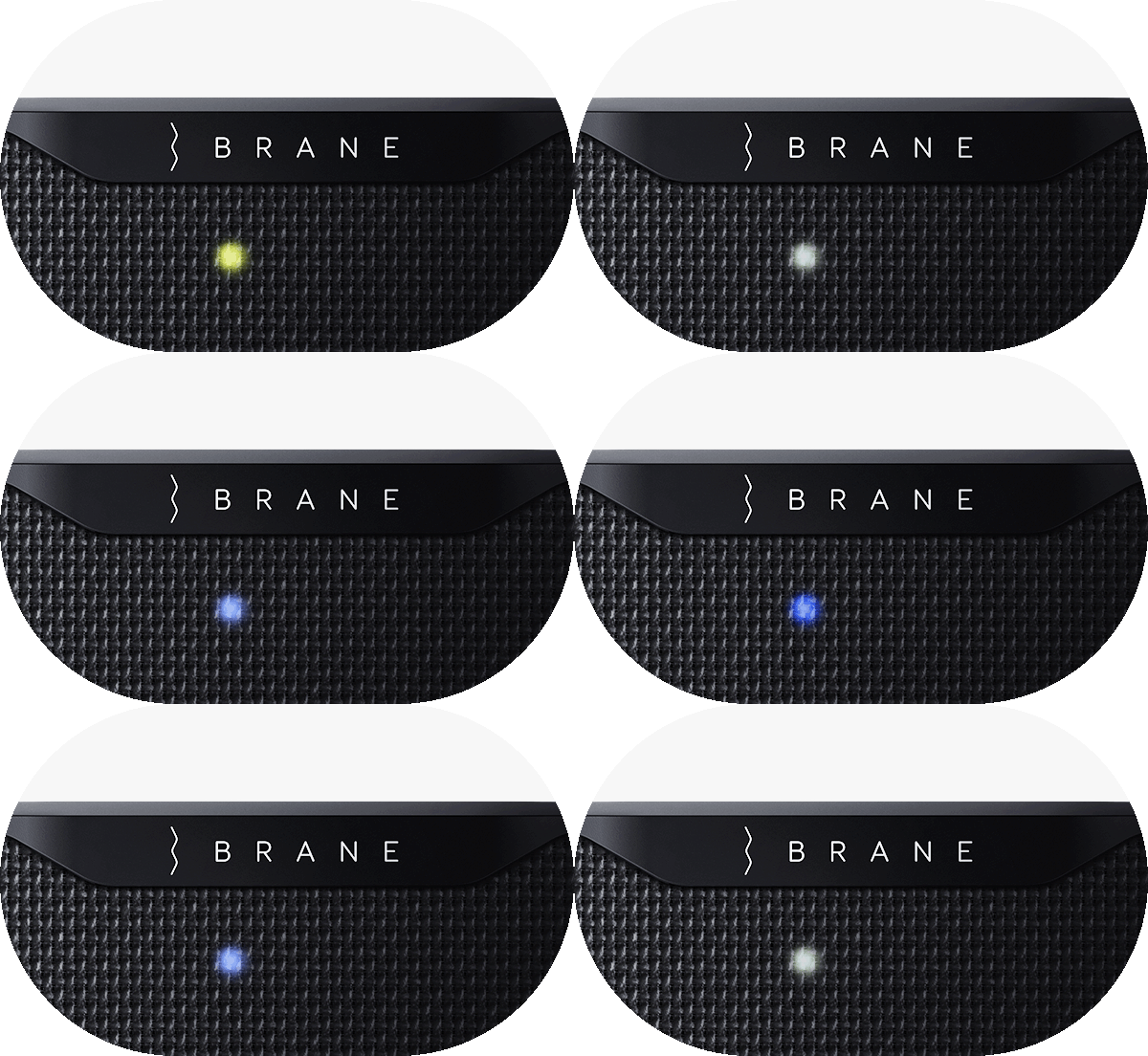
Wi-Fi unlocks AirPlay 2, Spotify Connect, Alexa, grouping and firmware updates. With your phone on the Wi-Fi network you want, tap the speaker in the app and follow the steps. The Wi-Fi light turns solid white once it is connected. A solid yellow light soon afterwards means a firmware update is running, so keep the speaker plugged in until it goes out.
Play something
Play over Bluetooth straight away, stream over AirPlay 2 or Spotify Connect once the speaker is on Wi-Fi, or plug into the 3.5mm AUX input on the back. Bluetooth and AUX work without Wi-Fi.
Learn more
On the speaker
Controls
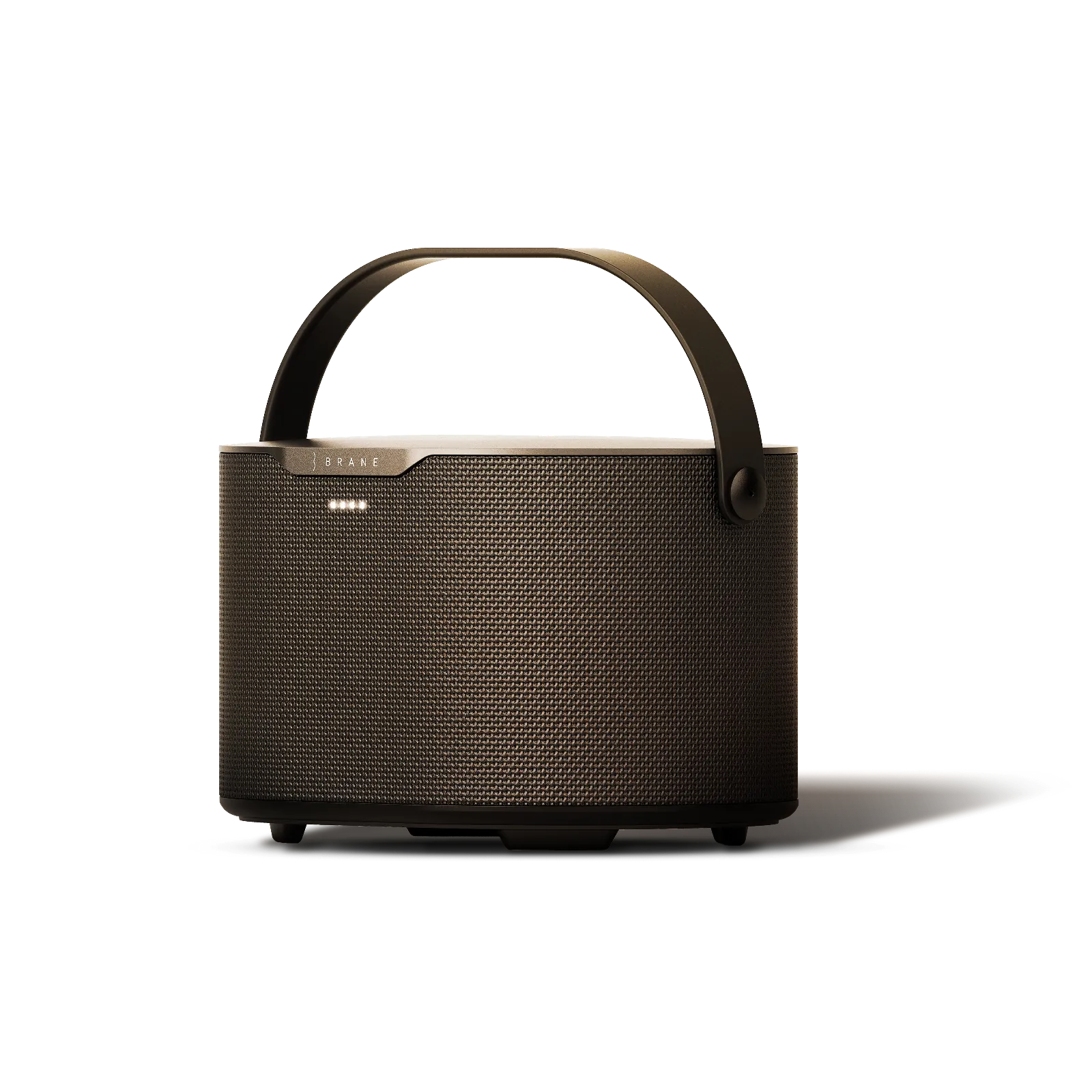
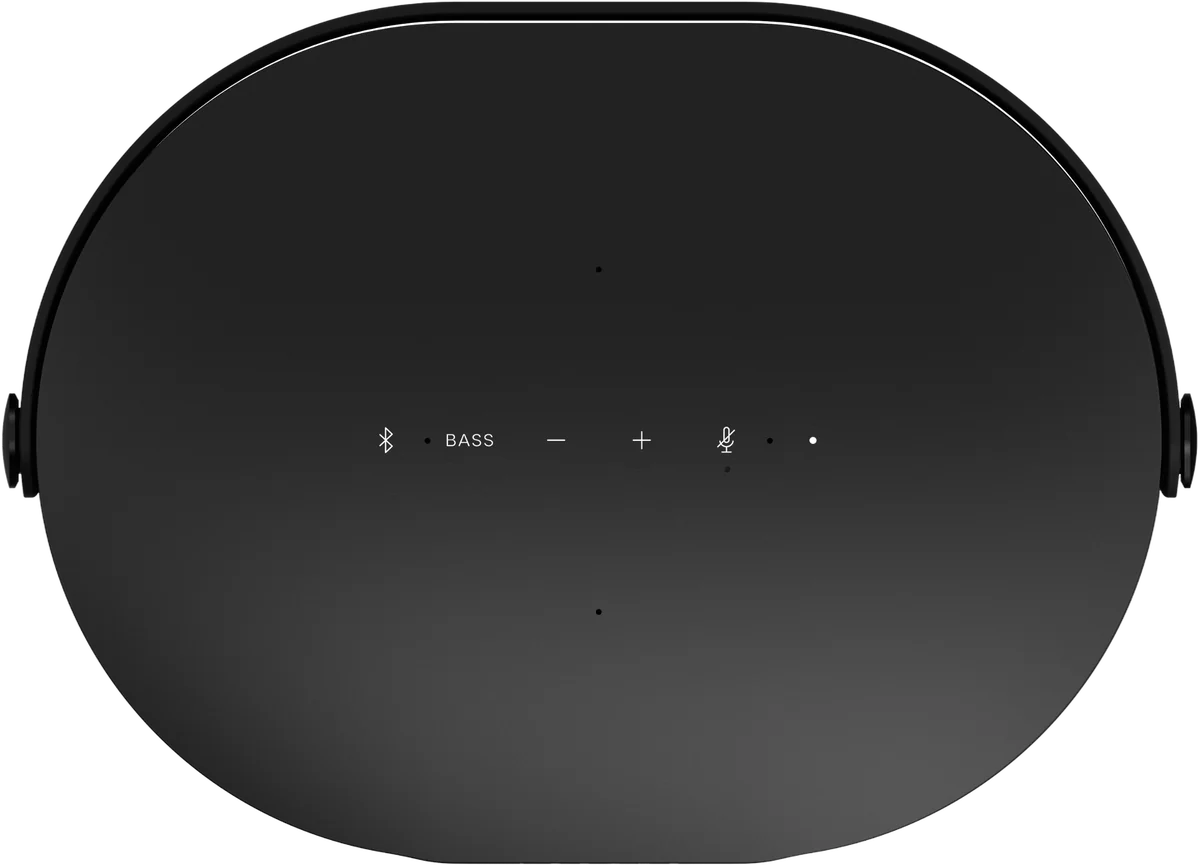
The Control Bar on top of the speaker has six touch buttons. The power button and the AUX input are on the back.
- Bluetooth button
- Press to start or stop Bluetooth pairing mode. While a device is connected, a press disconnects it. Hold for 5 seconds to turn Wi-Fi setup mode on or off.
- Bass button
- Press to hear the current bass level, then press again within 15 seconds to step through Low, Medium and High. A higher setting uses more battery. Hold for 5 seconds to reset the EQ. You can also set the bass in the app under Sound Settings > Bass. If Voice Announcements is off in the app, Bass only changes the level while music is playing.
- Volume buttons
- Minus for quieter, plus for louder. Hold either one to change the volume faster. Press both together to hear the battery level. Keep holding both through the spoken countdown to factory reset the speaker.
- Microphone Mute button
- Press it to turn the microphones off or on. A red indicator light means the microphones are off and Alexa cannot hear you. Hold it for more than 10 seconds to turn the buttons off until the speaker is next turned off.
- Alexa button
- Press to talk to Alexa without saying the wake word, or to stop an Alexa timer or alarm that is sounding.
- Power button
- On the back of the speaker. Press it to turn Brane X on and off. Hold it for 10 seconds to force the speaker off if it is stuck while starting up, seems not to turn on, or has frozen.
- 3.5mm AUX input
- On the back of the speaker, for wired sources such as a TV or a record player. AUX plays when no wireless source is playing.
- Front lights
- Four lights on the front show Bluetooth, Alexa, Wi-Fi and charging status. The legend is in the next section.
- Rotating handle
- Built in, for carrying.
LED legend
What the lights mean
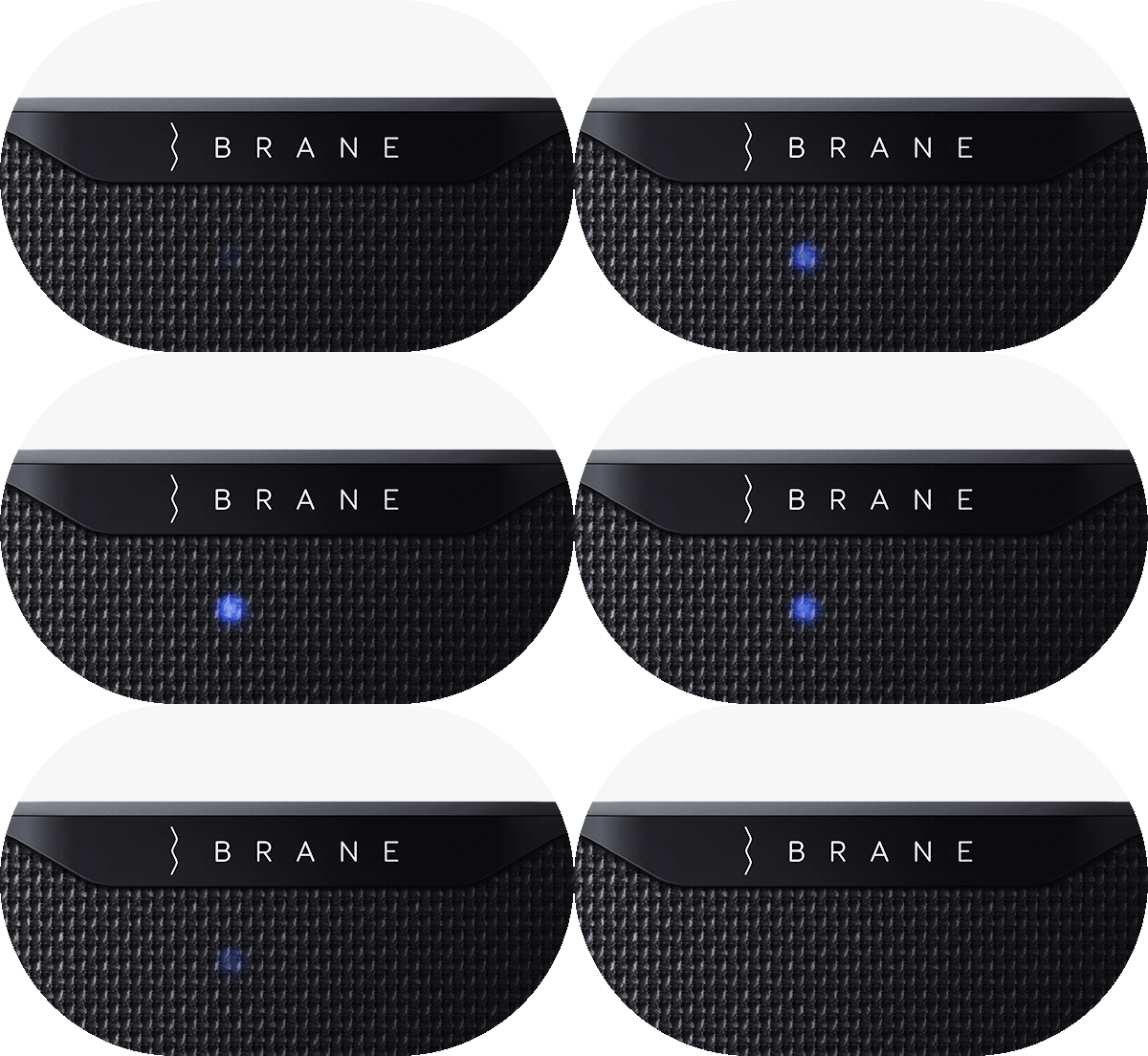
Four lights on the front show, from left to right, Bluetooth, Alexa, Wi-Fi and charging status.
 Solid
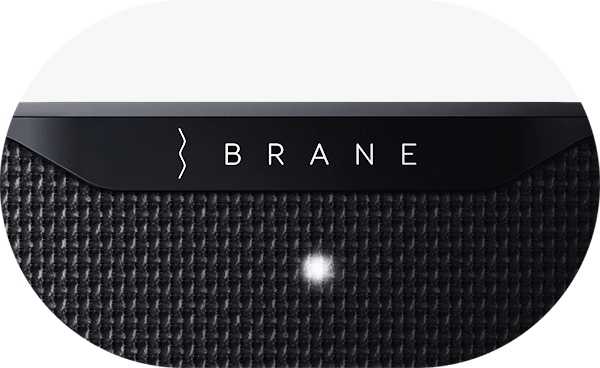
Three Solid White
Three dim white lights appear briefly while the speaker starts up after powering on. On firmware earlier than 2.1, a single white light shows instead. If the lights never go away, hold the power button for 10 seconds to force the speaker off, then turn it on again.
No Lights
The speaker will not show any lights when powered off, with the exception of the charging light when plugged in.
Learn more
Wireless
Connecting
Brane X plays over Bluetooth, Wi-Fi and a 3.5mm AUX cable. Bluetooth is the quickest way to start. Wi-Fi is needed for AirPlay 2, Spotify Connect, Alexa, grouping and firmware updates.
Bluetooth
Press the Bluetooth button. A pulsing blue light and a voice prompt confirm pairing mode, which stays on for 3 minutes. Choose the speaker in your device's Bluetooth settings. Unless you renamed it, it is listed as "Brane-" followed by its serial number. A solid blue light means it is connected. Bluetooth does not need Wi-Fi.
Wi-Fi
With your phone paired over Bluetooth and on the Wi-Fi network you want, tap the speaker in the Brane Audio app and follow the steps. A solid white light means it is connected. Or add it over Wi-Fi directly: hold the Bluetooth button until you hear "Wi-Fi ready to configure" and the white light pulses, then tap the plus button in the app.
AirPlay 2 and Spotify Connect
Brane X supports Apple AirPlay 2 and Spotify Connect over Wi-Fi. Apple users can select Brane X and AirPlay 2-compatible Sonos speakers at the same time to play the same audio. Brane X does not connect directly to the Sonos app.
AUX cable
Plug a 3.5mm cable into the AUX input on the back and into your audio source. The wired input plays when no wireless source is playing on the speaker. For a TV, turn on Soundbar Mode.
TV
An Apple TV on the same Wi-Fi network is the simplest wireless route: it sends audio to Brane X over AirPlay with no delay. Many TVs can also connect over Bluetooth, and a TV with an audio output can use a cable with Soundbar Mode.
Alexa
Brane X has Alexa Built-in, and Alexa needs Wi-Fi. Set it up in the Brane Audio app: open your speaker, go to Voice Assistant and follow the prompts. Alexa on Brane X currently supports English (US). Press the Microphone Mute button to turn the microphones and Alexa off.
Learn more
Watching TV
Soundbar Mode
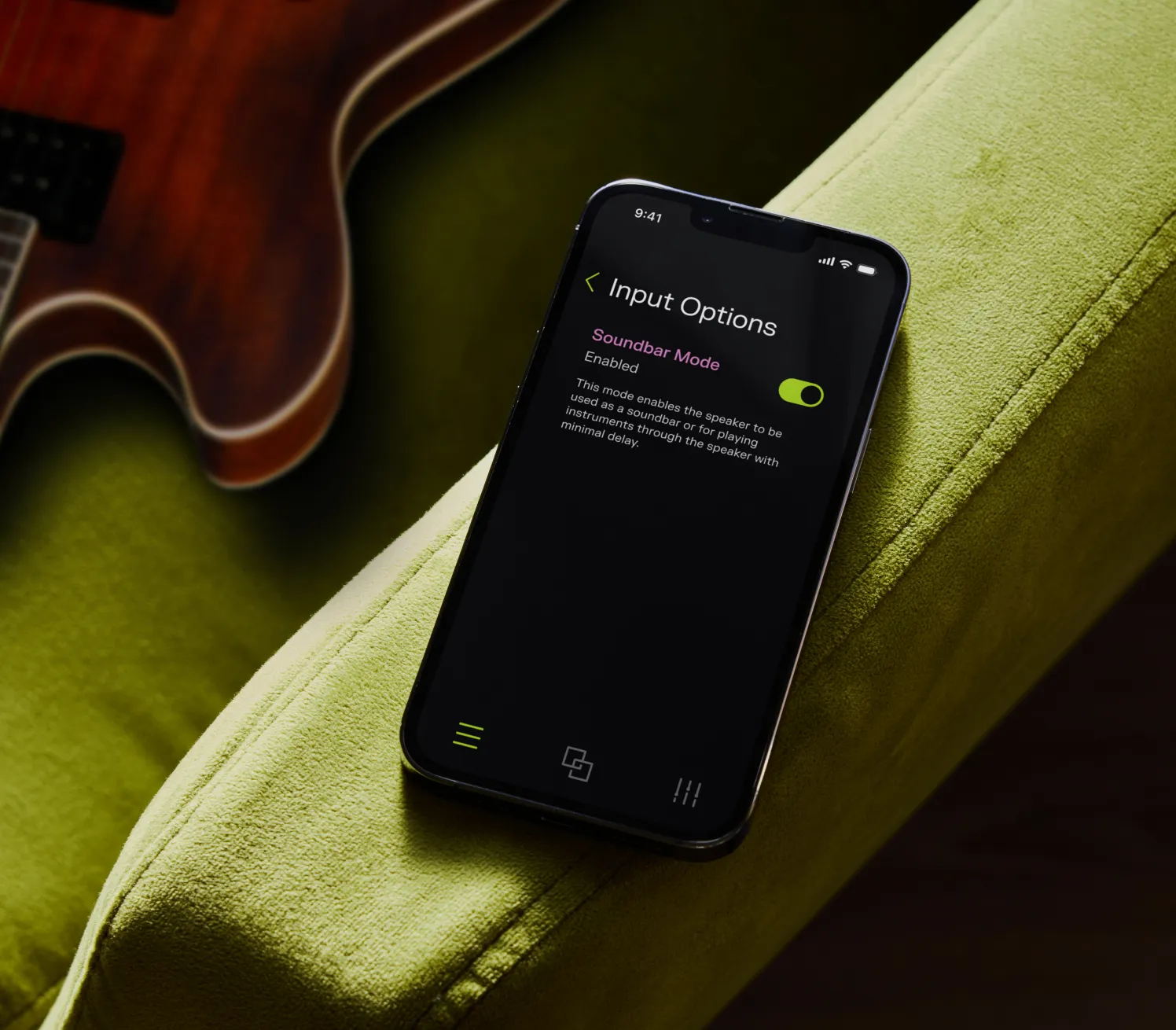
Soundbar Mode reduces audio delay when Brane X is wired to a TV or another audio source, so dialogue stays in sync with the picture.
Connect a cable
Run a 3.5mm cable from your TV's audio output to the AUX input on the back of Brane X. A TV with only an HDMI ARC or optical output needs an adapter with an analog output, with the TV's audio format set to PCM.
Turn on Soundbar Mode
In the Brane Audio app, open your speaker, go to Input Options and turn on Soundbar Mode. It was previously called AUX Passthrough. The app can change the setting over Bluetooth or Wi-Fi.
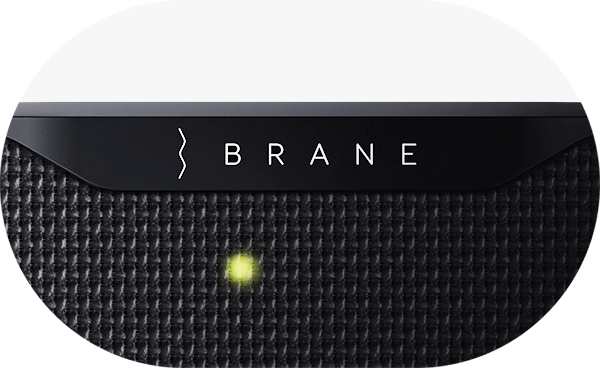
Look for the green light
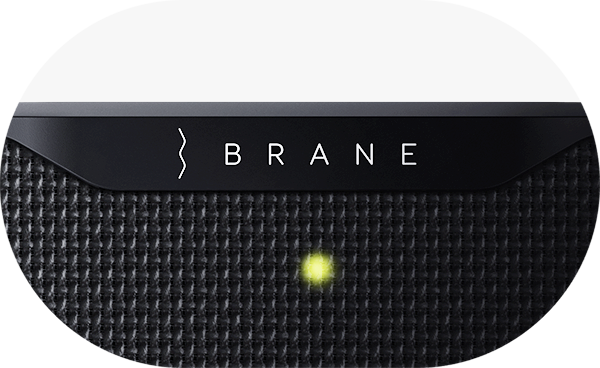
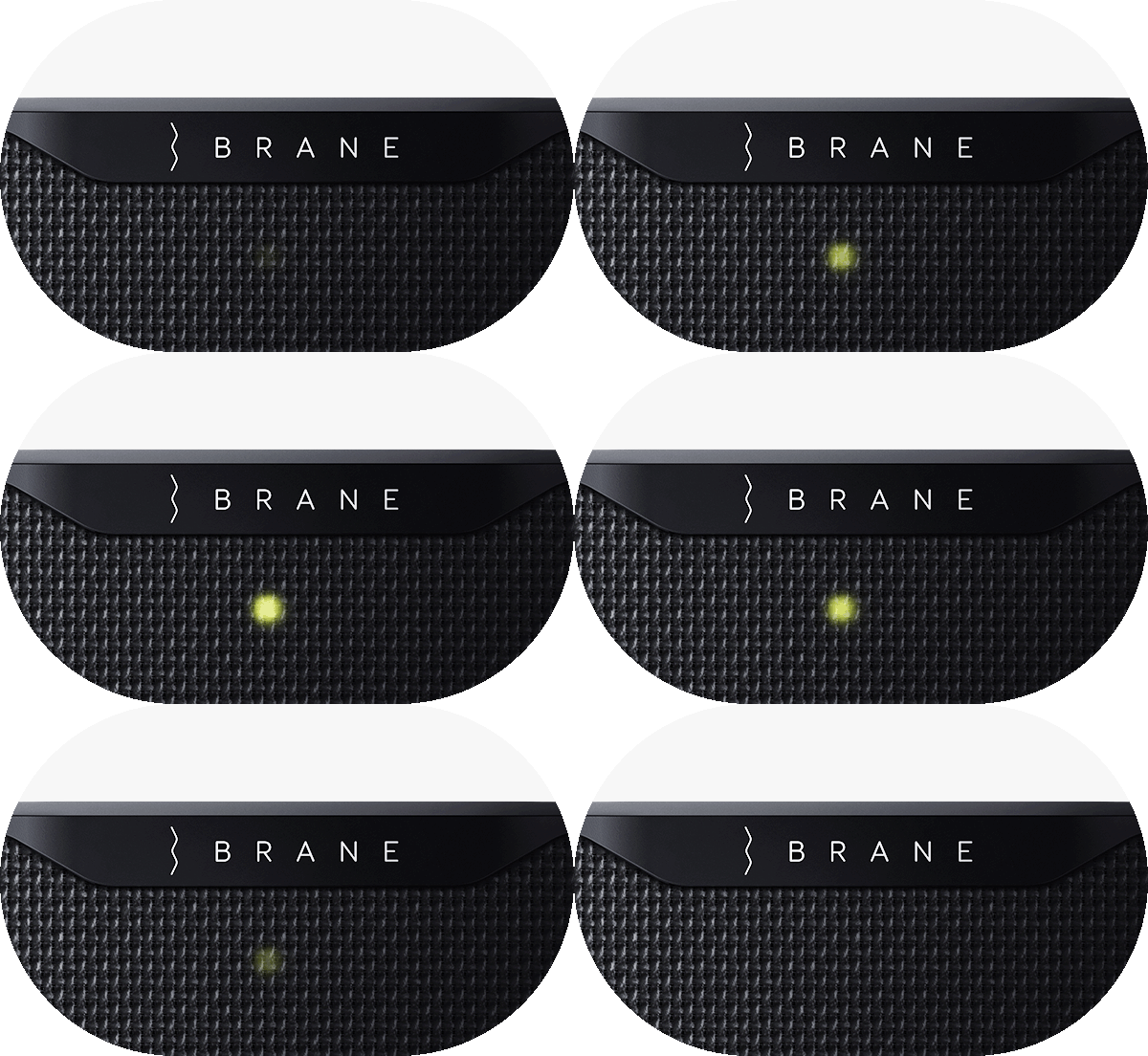
Start playback on the TV. A solid green light on the front shows that Soundbar Mode is on and the speaker is receiving a wired signal. If the mode is on and the light is not green, no signal is arriving: check the cable, the adapter and the audio output setting on the TV.
Battery
Charging
Up to 12 hours on a full charge at moderate volume, and you can keep listening while it charges.
- Charge time
- About three hours for a full recharge. The battery charges faster while the speaker is not playing.
- Charging light
- Solid orange while charging, and off when the battery is full. It works whether the speaker is on or off.
- Pulsing orange
- The light fades off and on. The speaker is waiting to charge, for example while the battery cools down. The light turns solid orange when charging begins.
- Blinking orange
- The light turns fully off and on. This means a battery or charger fault. Contact Brane Audio support.
- Battery level
- Press both volume buttons together to hear the battery level. The speaker also announces it when it powers on if Voice Announcements is on in the app.
- Leave it plugged in
- On wall power Brane X runs from the adapter, not the battery, so it can stay on and plugged in all the time. In the app, Advanced Settings > Park RAD on Idle is off by default. Turning it on lets the speaker park the bass driver after 5 minutes idle to cut power draw.
- Automatic power off
- On battery, the speaker turns itself off after 30 minutes without audio, and when the battery runs low.
- In the box
- The charging cable and power adapter. A more compact USB-C charger and adapter kit can be purchased separately from Brane Audio.
 Solid
Solid Orange
A solid orange light when the charger is plugged in indicates that the speaker is charging. This light will turn off when charging has completed. The charging light works whether the speaker is on or off.
 Pulsing
 Orange
A pulsing orange light, which fades off and on while the charger is plugged in, indicates that the speaker is waiting to charge. For example, this can occur when the battery must cool down before charging. The light will turn solid orange when charging has begun.
- Flashing
Blinking Orange
A blinking orange light, which turns fully off and on, indicates a battery or charger fault. Contact Brane Audio support.
Learn more
Start over
Factory reset
A factory reset erases your settings, saved Wi-Fi networks and paired Bluetooth devices, and returns Brane X to the way it left the box. It takes about 15 minutes.
Plug it in and power on
The reset runs on wall power. On firmware 2.0 and later it can also run on battery, as long as the battery is above 75%.
Hold both volume buttons
Press and hold plus and minus together. After about 10 seconds the speaker counts down. Keep holding until it says "Factory reset initiated", about 15 seconds in all. Let go earlier to cancel.
Wait for the restart
A yellow-orange light stays on during the reset and the speaker restarts by itself. The reset is complete when that light turns off, typically after about 15 minutes.
Set it up again
The reset erases saved Wi-Fi networks and paired Bluetooth devices, so set the speaker up the same way as the first time: pair your phone over Bluetooth, open the Brane Audio app, then add Wi-Fi.
 Solid
Solid Yellow-Orange
A solid yellow-orange light indicates that a factory reset is in progress. The speaker will reboot during the reset, and the light will turn off when the reset has completed, typically after about 15 minutes. If the light stays on while the speaker is on battery, plug in the charger: the reset may be waiting for wall power.
Downloads
Manuals in English, French, German and Spanish.
Quickstart Guide
User Manual
Brane X Info Sheet
Still need help?
Browse the FAQ, search the help center, or contact our support team.